Contact Record ID
Full Name
The full name of the vendor contact. The contact's name must be unique among other contacts for the vendor.
ActivityHD parses the name you enter here and loads its individual parts in the fields in the Name section. If you do not get the desired results, you can type the contact's name directly into the fields in the Name section.
Vendor
Select the vendor the contact is associated with. This field is disabled after the contact record is saved.
If you create the contact record from the vendor's Contacts tab, the vendor name is prefilled for you.
Press F3 to look up the value.
If a value is already selected, you can press F4 to open the record in its native editor.
Primary?
If marked, indicates this contact is the primary contact for the vendor. Only one contact per vendor can be flagged as primary.
Reporting
If marked, indicates this contact is designated as the contact to use when reporting 1099 recipient name information for "Individual" recipient types. The reporting contact should be associated with the reporting location for 1099 reporting.
Contact tab
Name
ActivityHD automatically updates the Full Name field with any changes you make in this section.
Prefix
A prefix for the contact's name.
Examples
Mr., Ms., Mrs., Dr.
First
The contact's first name.
Middle
The contact's middle name or initial.
Last
The contact's last name.
Suffix
If applicable, a suffix for the contact's name.
Vendor Location
Location
The vendor location for the vendor contact. If the vendor has a location flagged as the reporting location, that location loads as the default vendor location. Each vendor contact must be associated with exactly one vendor location.
Address and phone information for the vendor location display in the text box below.
Press F3 to look up the value.
If a value is already selected, you can press F4 to open the record in its native editor.
Information
Job Title
The contact's job title with the vendor.
Mail Stop
The contact's mail stop. A mail stop is an internal address designated by an organization for delivery of an individual's or a department's mail.
Email
The contact's email address. The email address becomes a hyperlink on which you can press Ctrl+click to launch your email client with an email pre-addressed to the contact.
Phone Numbers
Work
The contact's main work number.
Mobile
The contact's cell phone number.
Home
The contact's home phone number.
Fax
The contact's fax number.
Other
Another phone number for the contact.
Custom tab
This tab is visible if custom fields exist for the entity. At a minimum, if there are custom fields, a Fields subtab will be present. One or more additional categories of subtabs may also be visible.
Fields subtab
This tab prompts for values for any custom fields set up for entity records of this entity type. Respond to the prompts as appropriate.
References subtab
This tab is visible if other records reference the current record.
Reference
From the drop-down list, select the custom field to view references for. Reference custom fields have the following format: PackageName.EntityName.CustomFieldName.
Example
Suppose a custom field exists on PRCodes that references an ARCode. On the ARCode record, on the Custom > References subtab, you can view all the PRCodes which reference that ARCode.
Exchange Folder subtab
This tab is visible only if you set up a custom field with a data type of "Exchange Folder". The label on this tab is the name assigned to the custom field.
This tab shows the contents of the specified Exchange folder.
File subtab
This tab is visible only if you set up a custom field with a data type of "File". The label on the tab is the name assigned to the custom field.
This tab renders the contents of the specified file according to its file type.
Internet Address subtab
This tab is visible only if you set up a custom field with a data type of "Internet Address". The label on this tab is the name assigned to the custom field.
This tab shows the contents of the specified web page.
Network Folder subtab
This tab is visible only if you set up a custom field with a data type of "Network Folder". The label on this tab is the name assigned to the custom field.
This tab shows the contents of the specified network folder.
Data Links tab
See "Data Links".
Notes tab
The Notes pane shows the Notes HD view filtered to show all notes for the selected contact.
Double-click a row in the pane to drill down to its record in the Note window.
The Attachments tab is visible if any record for a given entity has an attachment. If the Attachments tab is not visible, this implies that no record of the entity type has an attachment on it; however, once an attachment is added to any record of the entity type, the Attachments tab will become available.
Attachments
The list box shows the files which are attached to the current record. Highlight a file name to preview the file in the adjacent pane. Double-click a file name to open the file in its native editor.
Preview pane
If a file name is highlighted in the Attachments list box, this pane shows a preview of the file contents. Some file types cannot be previewed but can be double-clicked to open in their native editor.
Change Logs tab
This tab is visible if the user has "Change Logs" access to the associated data folder resource.
The Change Logs pane shows the Change Logs HD view filtered to show all change logs for the selected entity record.
Double-click a row in the pane to drill down to its record in the Change Log window.
Other tab
Memo tab
To include additional information about this record not collected elsewhere, enter it in this text box. This area supports common keyboard shortcuts such as Ctrl+C to copy and Ctrl+V to paste.
Timestamps tab
This tab shows the user who created this record and the date and time of creation as well as the user, date, and time of the latest modification to the record.
Developer tab
This tab is visible only when developer features are enabled.
Automation subtab
This subtab shows field names and values for the current data record. Use the information in the subtab to assist when creating automation objects such as bots and import files. The field names and field values can be copied from the text box and pasted directly into your code or application. To copy content from the text box, highlight the content to copy and press Ctrl+C or right-click your selection and select Copy from the context menu.
Export (XML | JSON) subtab
This subtab shows the XML syntax for exporting the selected data record. The syntax can be copied from the text box as an exemplar for creating your own automation objects for bots, import files, ActivWebAPI, etc. To copy content from the text box, highlight the content to copy and press Ctrl+C or right-click your selection and select Copy from the context menu.
Import (XML | JSON) subtab
This subtab allows you to select a file for import and shows the XML syntax for importing data records. Use the subtab to explore the XML syntax for importing data records. In particular, you can investigate the syntax which results when using Data.Import and ActivWebAPI data POST and DELETE routes.
Change Log (XML | JSON) subtab
This subtab is visible only when the Enable Change Logs option is marked in System Options or Company Options (depending on whether the feature applies at the system or the company level). This is the default setting when developer features are enabled.
This subtab allows you to investigate changes to the current data record. The syntax can be copied for use in bots, dashboards, ActivWebAPI, and other automation. To copy content from the text box, highlight the content to copy and press Ctrl+C or right-click your selection and select Copy from the context menu.
Select Statement (SQL) subtab
This subtab allows you to investigate the SQL select statement used to retrieve the current data record. The syntax can be copied as an exemplar for data sources and other automation. To copy content from the text box, highlight the content to copy and press Ctrl+C or right-click your selection and select Copy from the context menu.
 Create a vendor contact
 . The New Contact window opens.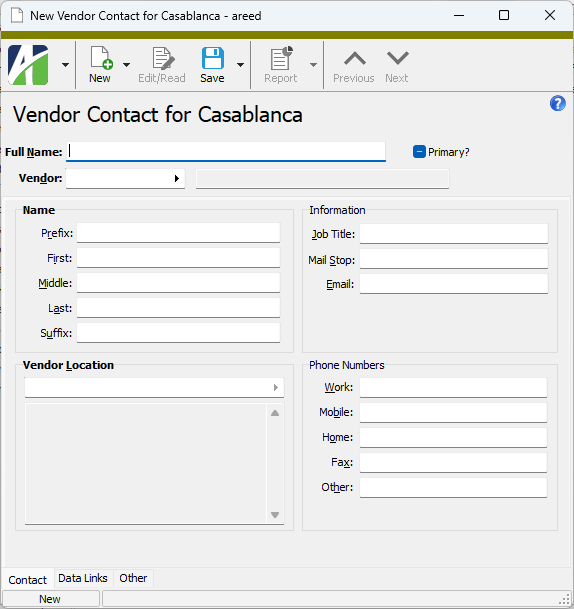
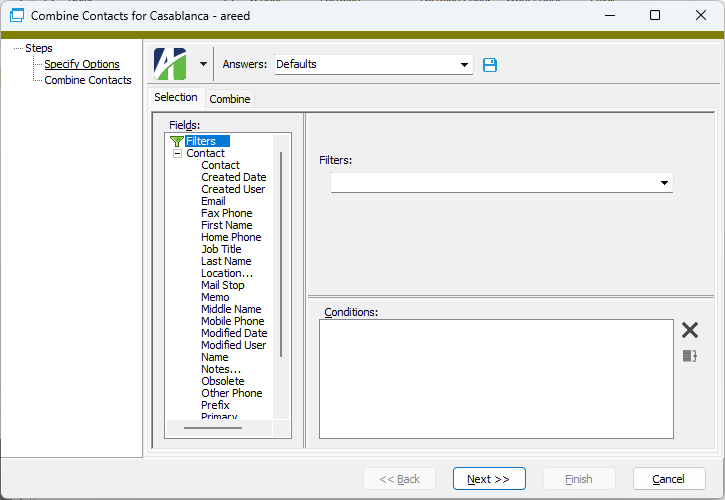
 .
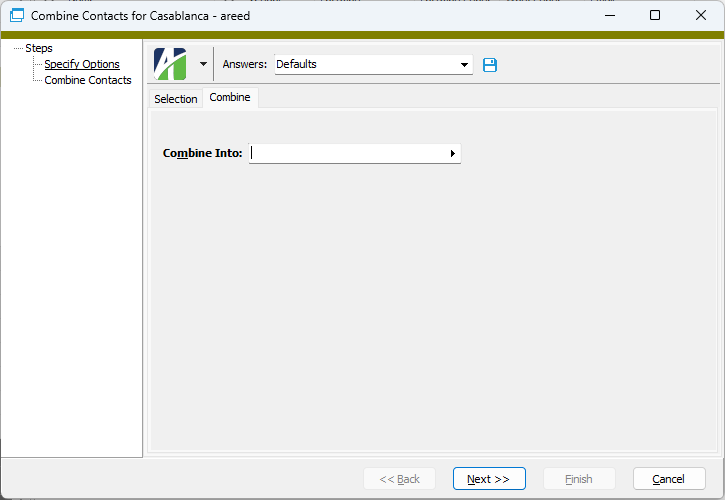
.
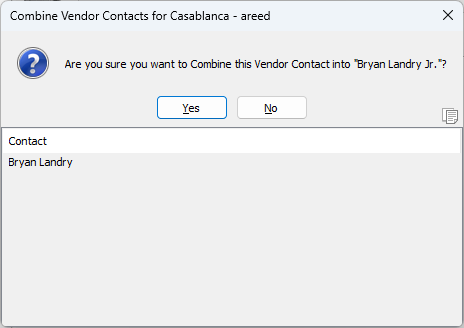
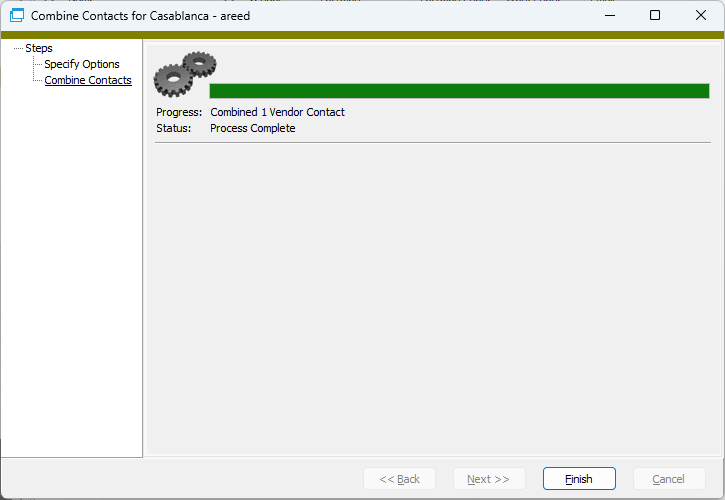
 , or open the vendor contact record and select
  > Edit > Delete. In either case,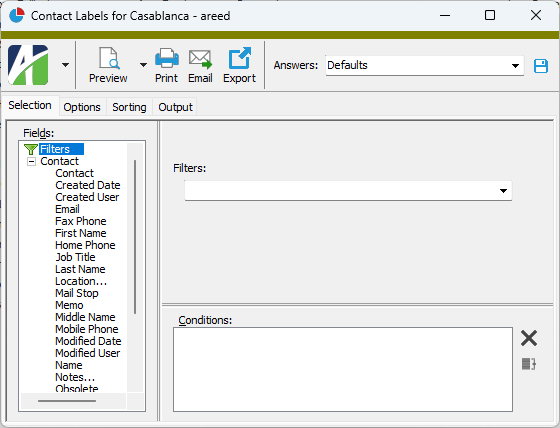
 and select Contact Labels from the drop-down menu.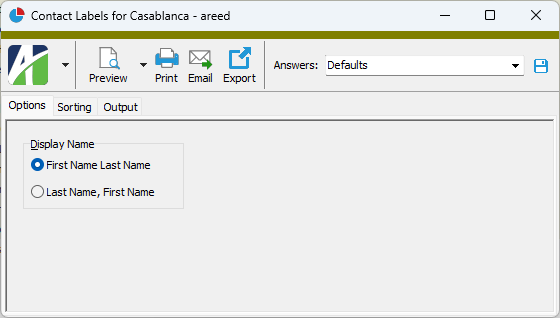
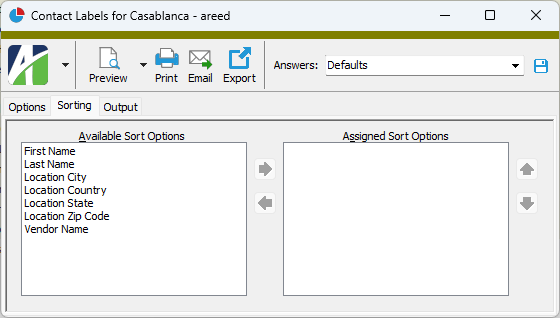
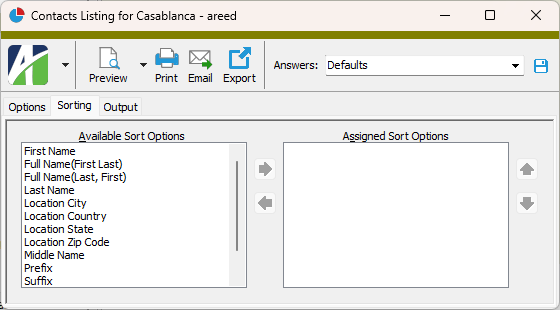
 to move your selection(s) to the Assigned Sort Options list box.
 and
and  to arrange the sort fields in the order you want them applied.
 - Provides access to two preview options.
 - Opens the Print dialog so that you can select and configure a printer and then print a paper copy of the report.
 - Opens the
  - Opens a drop-down menu with two export options: